Profiles
Search profiles control how search queries are executed, including which fields to search, their relative importance, and rules for boosting or filtering results.
To access search profiles, go to Merchandise > Search > Profiles.
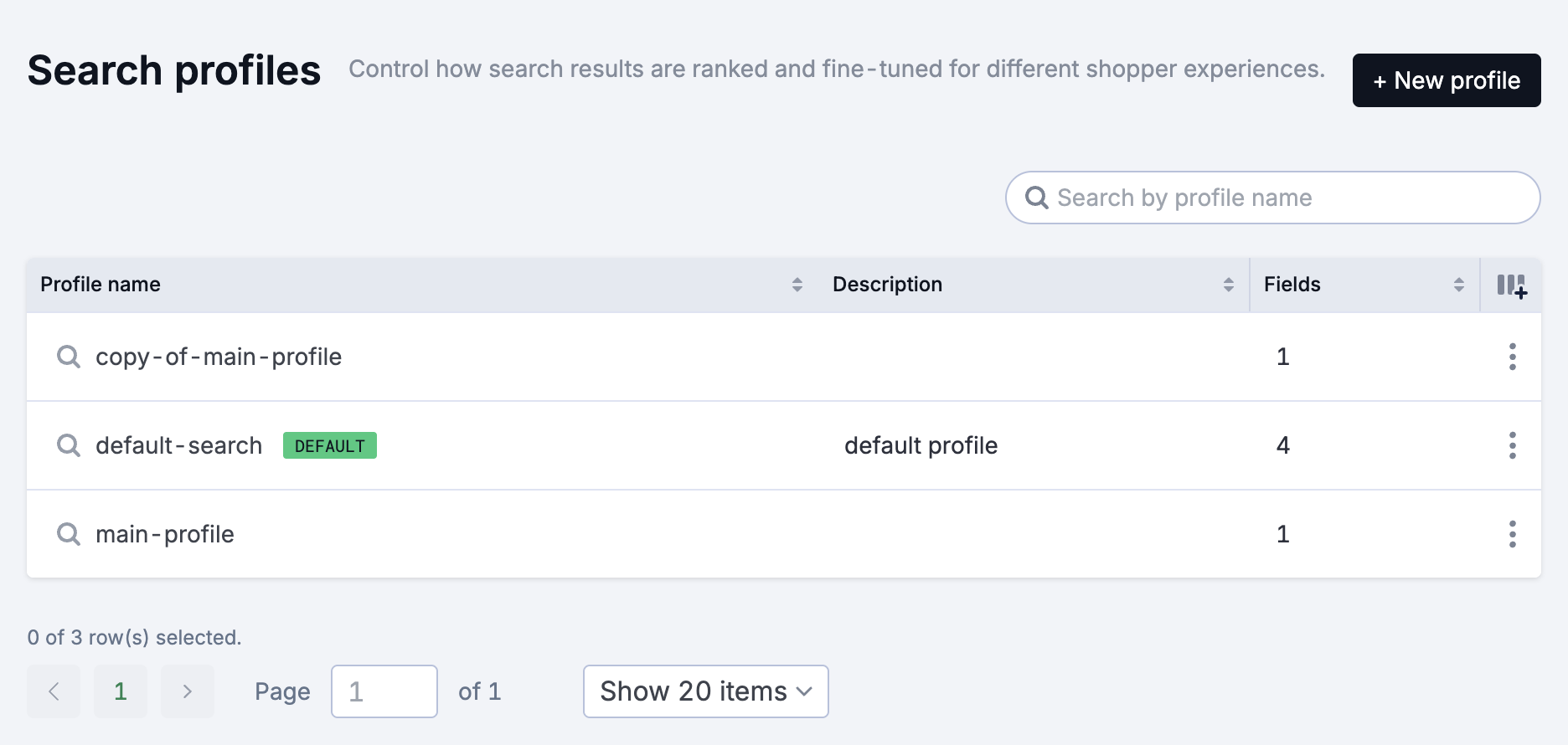
The Profiles screen displays a table of all configured search profiles with the following columns:
| Column | Description |
|---|---|
| Profile name | The name/slug of the profile. |
| Description | A description of the profile's purpose. |
| Fields | The number of searchable fields configured. |
| Menu | Actions menu for managing the profile. |
One profile is marked as the default and is used when no specific profile is requested.
Creating a Search Profile
- Go to Merchandise > Search > Profiles.
- Click +New Profile in the top right.
- Enter a Slug (required) to identify the profile.
- Enter a Description to explain the profile's purpose.
- Configure the profile using the tabs described below.
- Save your changes.
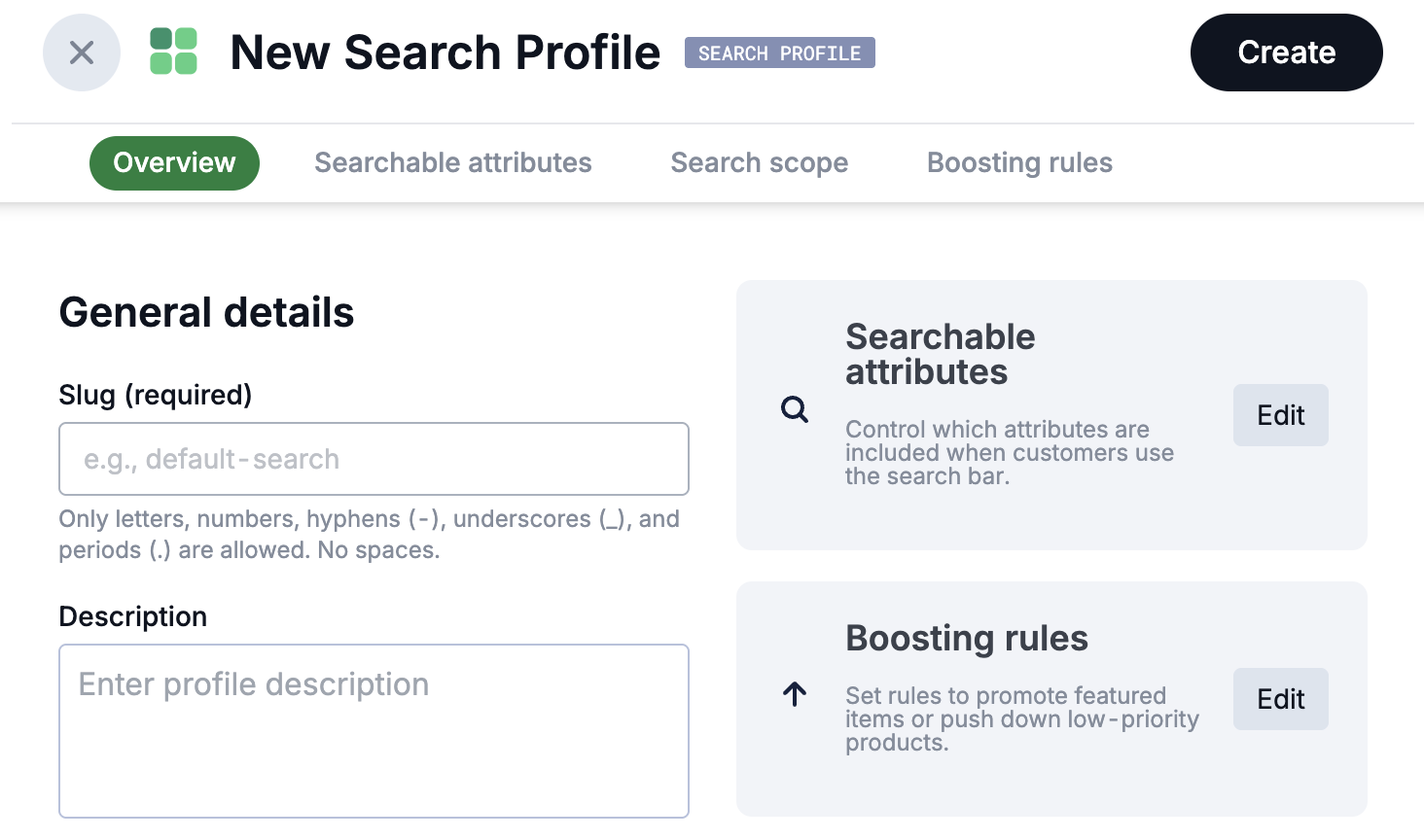
The profile configuration screen has the following tabs:
- Overview: General profile details (slug and description).
- Searchable attributes: Configure which fields are searchable and their weights.
- Search scope: Configure filters that apply to all searches using this profile.
- Boosting rules: Configure rules to promote or demote products.
Configuring Searchable Attributes
The Searchable attributes tab controls which fields are included in searches and their relative importance.
- From the profile, select the Searchable attributes tab or click Edit next to Searchable attributes.
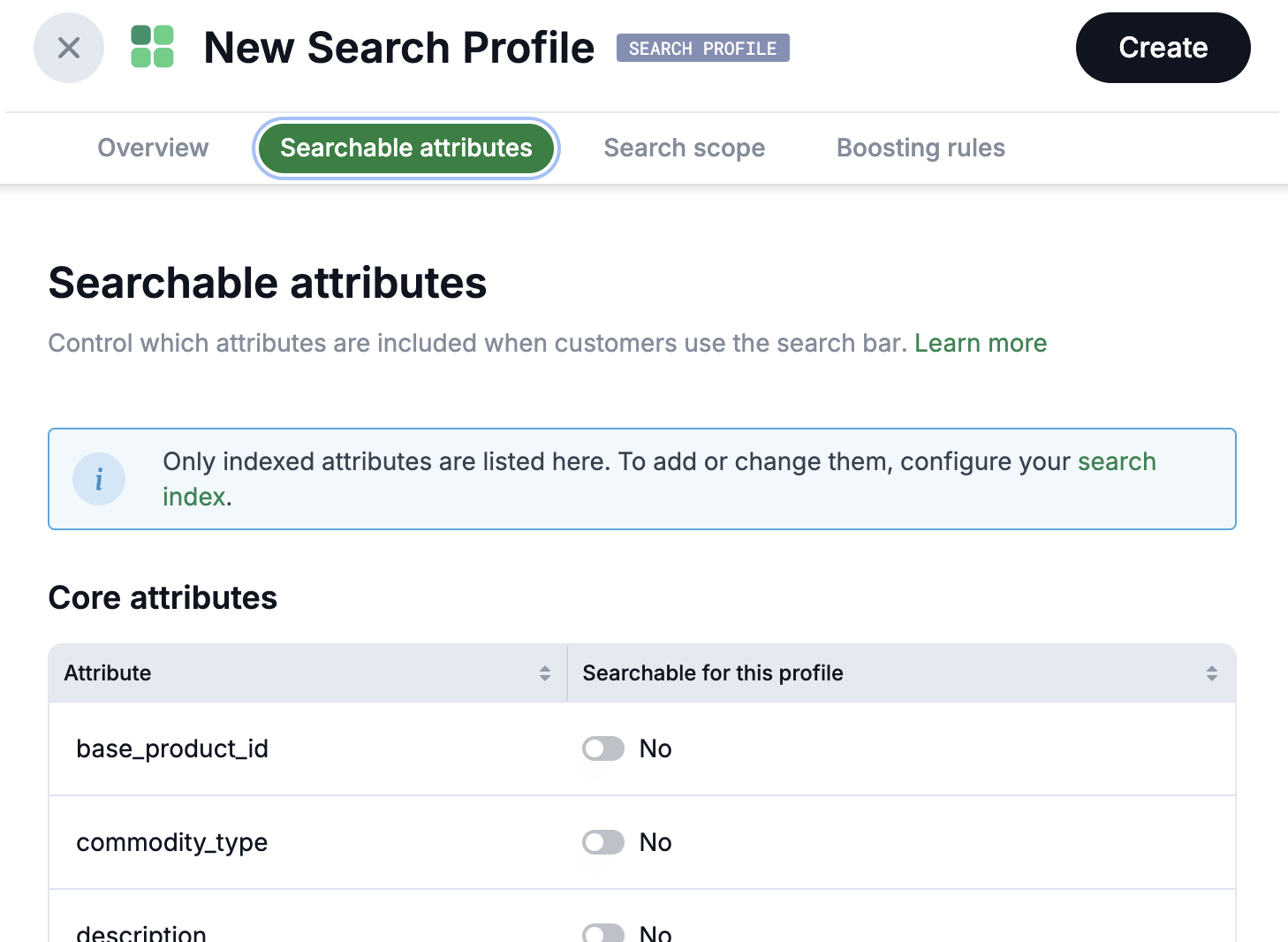
There are two tables:
- Core Attributes: Standard product fields such as name, description, and SKU.
- Extended Attributes: Custom fields from your product templates.
Both tables have the same structure. Toggle Searchable for this profile to include or exclude each attribute from searches using this profile.
Configuring Search Scope
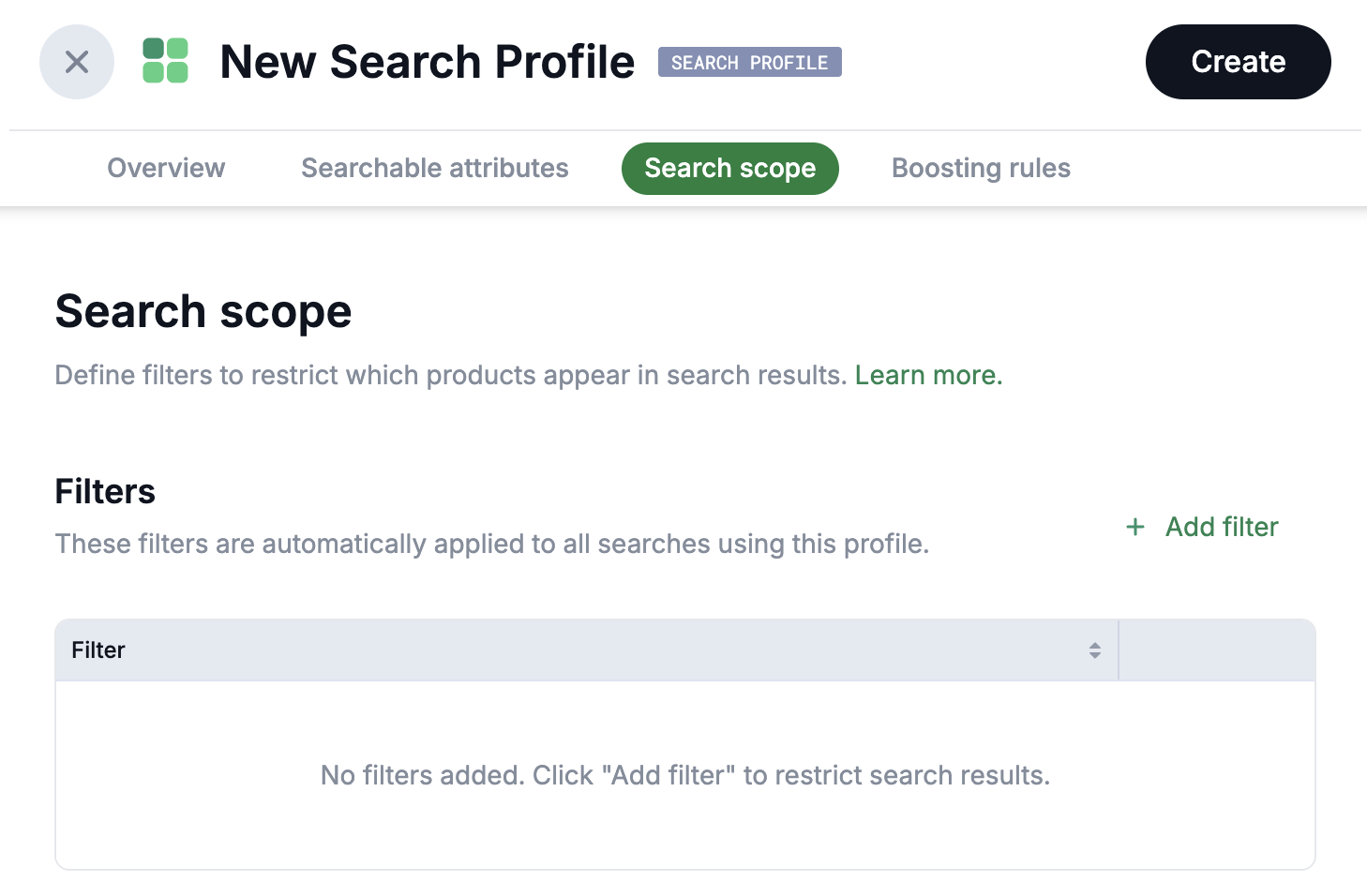
The Search scope tab allows you to define filters that are automatically applied to all searches using this profile.
- From the profile, select the Search scope tab.
- In the Filters table, click + Add filter to add a new filter.
- Configure your filter criteria.
Configuring Boosting Rules
The Boosting rules tab controls how products are ranked in search results.
- From the profile, select the Boosting rules tab or click Edit next to Boosting rules.
Text Match Type
Select how scores from multiple matching fields are combined:
| Option | Description |
|---|---|
| Best single field match | Uses the highest score from any matching field. Best for general product search. |
| Highest weighted field | Uses the score from the highest-weighted matching field. Use when field importance matters more than match quality. |
| Sum of all matches | Sums scores from all matching fields. Rewards products that match in multiple fields. |
Boost Factors
The Boost factors table allows you to increase or decrease the importance of specific attributes.
| Column | Description |
|---|---|
| Attribute | The attribute to boost. |
| Boost factor | A multiplier for this attribute's contribution to relevance. Higher values increase importance. |
Advanced Boosting Rules
Advanced boosting rules allow you to promote or demote products based on specific conditions such as categories, tags, or attribute values.
The Advanced boosting rules table has the following columns:
| Column | Description |
|---|---|
| Rule name | The name identifying the rule. |
| Boost factor | The weight applied when the rule condition is met. |
To create a rule, click + New Rule and select an option from the Boost products in/with menu.
Hierarchy & Node (Categories)
Boost products based on their category assignment.
- Select Hierarchy & node (categories).
- A pane appears with a table showing Name, Slug, and Last updated columns.
- To drill down into a node with children, click the > symbol to the left of its name.
- Select the node you want to boost.
- Click Add Selected.
- Enter a Boost Weight (positive values promote, negative values demote).
- Save the rule.
Product Tags
Boost products that have specific tags.
- Select Product tags.
- A list of available tags appears.
- Select the tag you want to boost.
- Click Add Selected.
- Enter a Boost Weight (positive values promote, negative values demote).
- Save the rule.
Product Attribute
Boost products based on attribute values.
- Select Product attribute.
- Select the attribute you want to use.
- Click Add Selected.
- In the Configure rule pane, set the condition:
- Select an operator: Equals, Contains, Not Equal, or Starts with.
- Enter a Value to match against.
- Enter a Boost Weight (positive values promote, negative values demote).
- Save the rule.
The available operators may vary depending on the attribute type.
Managing Profiles
Each profile in the list has a menu icon on the right with the following actions:
| Action | Description |
|---|---|
| Make default | Set this profile as the default for all searches. |
| Duplicate | Create a copy of this profile. |
| Delete | Remove this profile. |