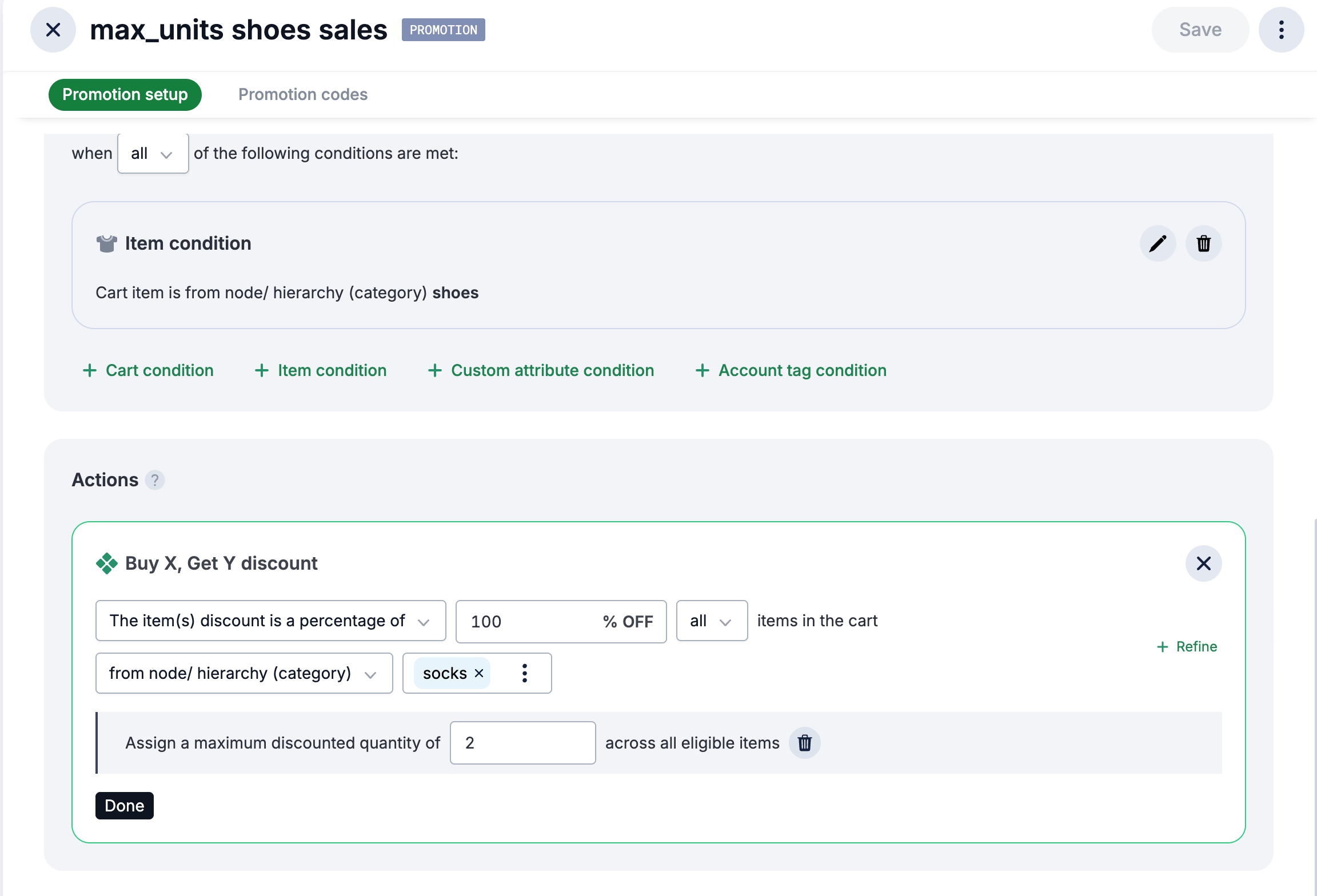
Creating an Item Discount with Max Units Limitation
Use Case (Simple):
Buy anything from the shoes category, then get 100% off from the socks category with a maximum quantity of 2 across all eligible items.
To set this up in the Promotions Builder:
- In Commerce Manager, go to Merchandise > Promotions > Builder. Edit or create a new promotion.
- Configure an Item condition and select node/hierarchy (category) option, then select the shoes category.
- Create an BXGY Item discount in the Actions section:
- Choose percentage and enter 100
- Click +refine to add conditions and limitations:
- Under Add a condition, select node/hierarchy (category) and choose the socks category
- Under Set limit, select Maximum discounted quantities across all eligible items and enter 2
- Setup promotion code if the promotion has Coupon-driven toggle ON (by default). See Creating promotion codes.
This promotion ensures that when customers purchase from the shoes category, they receive a 100% discount on 2 socks items. By default, the cheapest items are discounted.
Example Scenarios
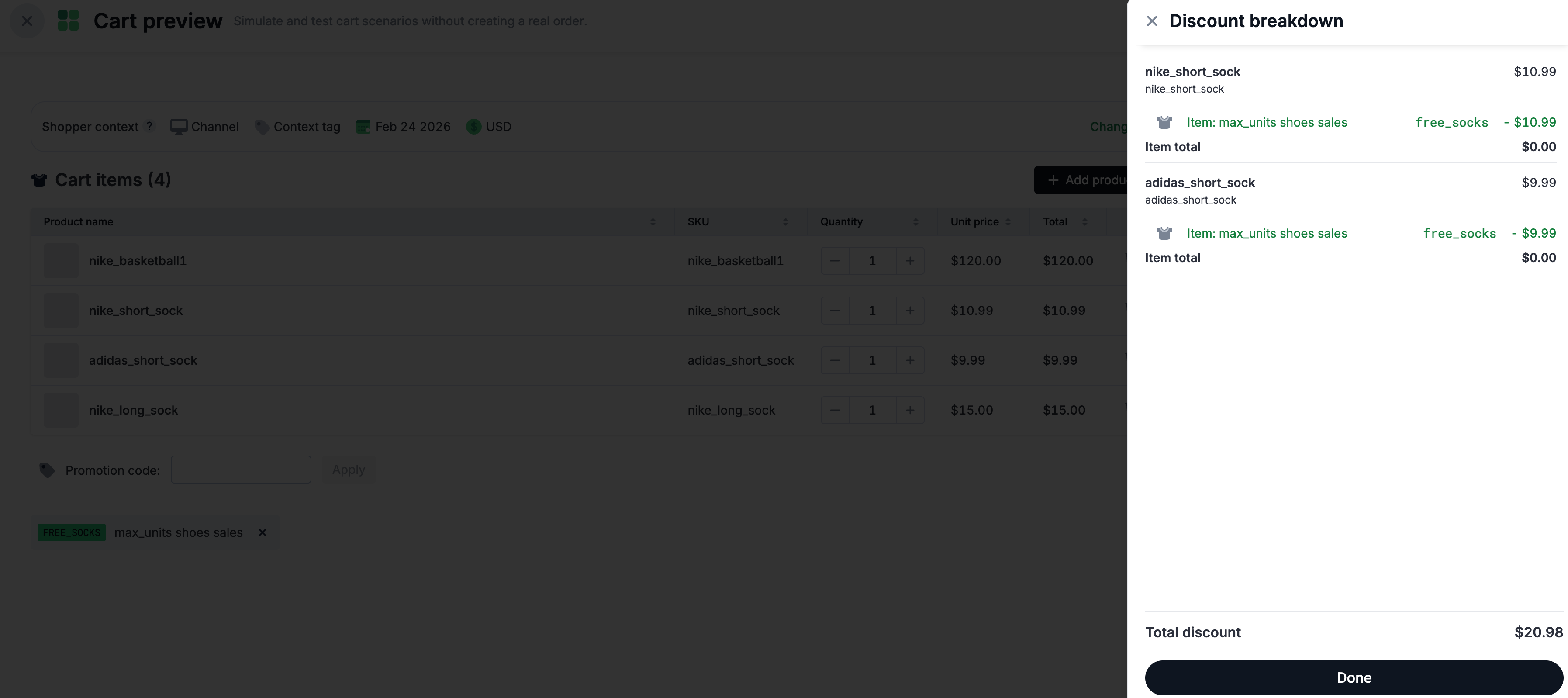
Scenario 1: Customer adds 1 shoes item and 3 socks items (quantity 1 each): nike_short_sock ($10.99), adidas_short_sock ($9.99), nike_long_sock ($15.00)
- Result: 2 cheapest socks items,
nike_short_sock($10.99) andadidas_short_sock($9.99), are discounted.
See Cart preview example below:
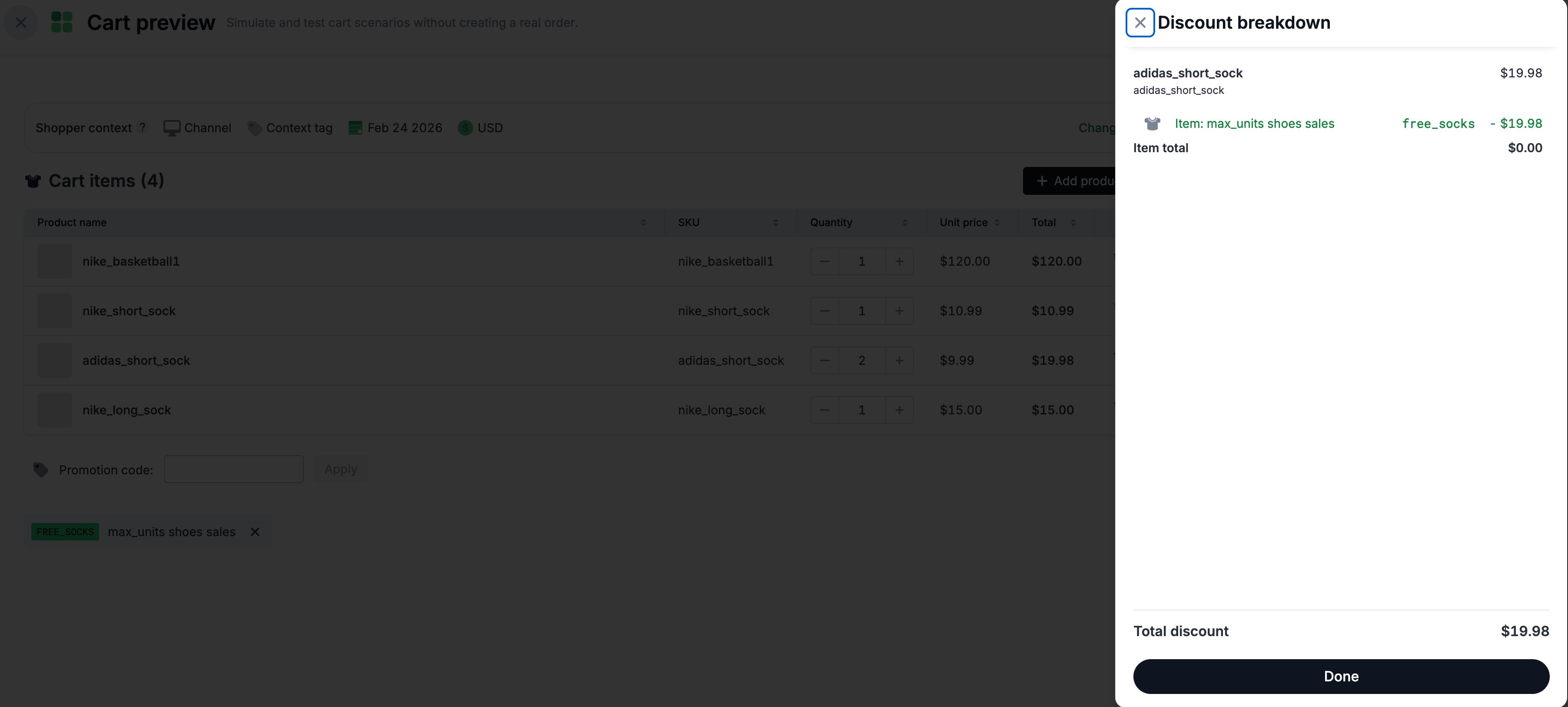
Scenario 2: Customer adds 1 shoes item and 3 socks items with quantities: 1 nike_short_sock ($10.99), 2 adidas_short_sock ($9.99), 1 nike_long_sock ($15.00)
- Result:
adidas_short_sockwith quantity 2 are discounted because it is the cheapest item with quantity of 2
See Cart preview example below:
Use Case (Advanced): Mixed-level limitations on the number of discounted items
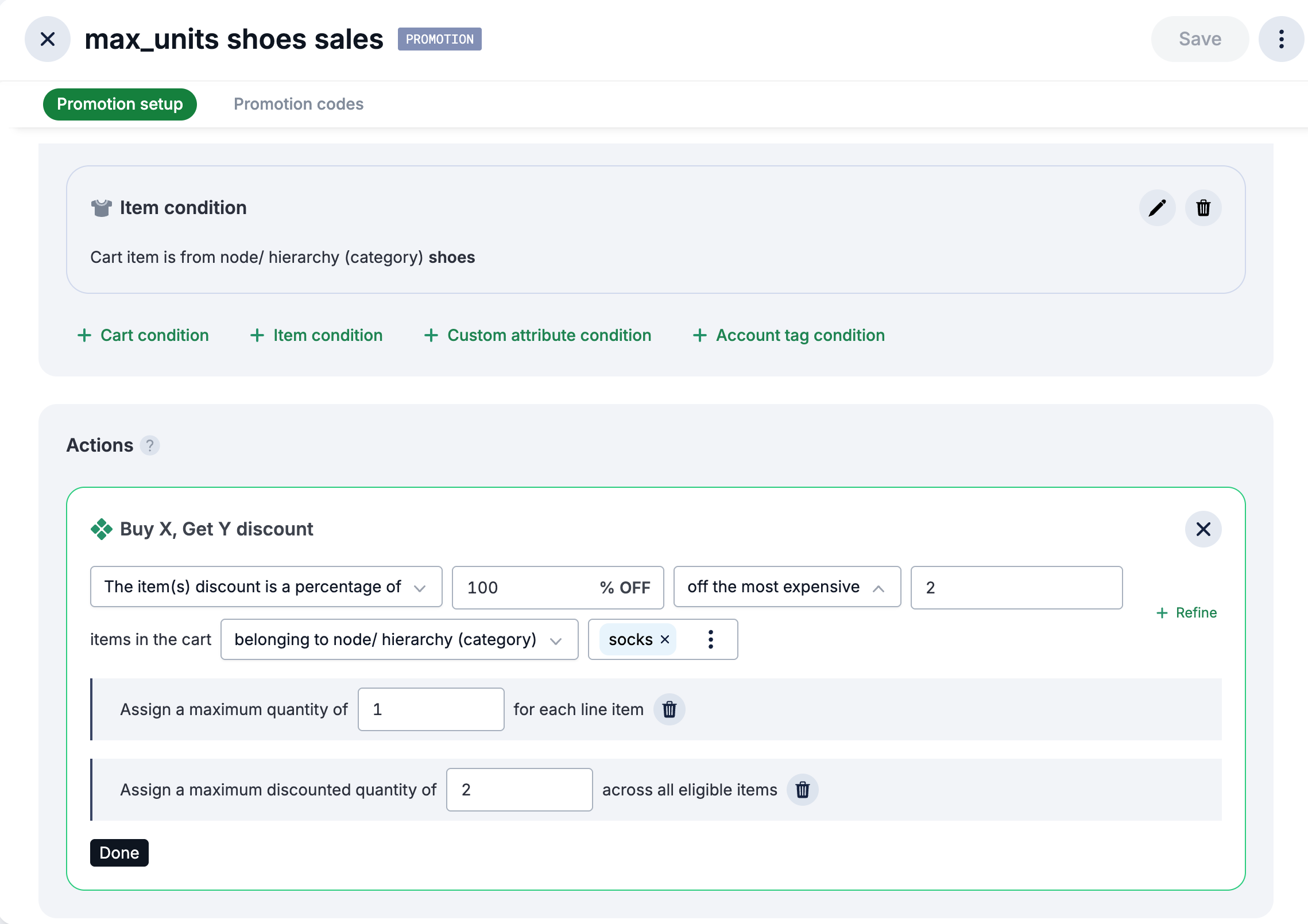
Buy any item from the Shoes category and get 100% off eligible socks. The promotion applies to up to 2 eligible line items, discounting a maximum of 2 total eligible units, starting with the highest-priced items.
To set this up in the Promotions Builder:
- In Commerce Manager, go to Merchandise > Promotions > Builder. Edit or create a new promotion.
- Configure an Item condition and select node/hierarchy (category) option, then select the shoes category.
- Create an BXGY Item discount in the Actions section:
- Choose percentage and enter 100
- Select off the most expensive items in cart
- Enter 2 for the quantity
- Click +refine to add conditions and limitations:
- Under Add a condition, select node/hierarchy (category) and choose the socks category
- Under Set limit, select Maximum quantity for each line item and enter 1.
- Under Set limit, select Maximum discounted quantities across all eligible items and enter 2
- Setup promotion code if the promotion has Coupon-driven toggle ON (by default). See Creating promotion codes.
This promotion ensures that when customers purchase from the shoes category, they receive a 100% discount on the 2 individual most expensive socks items.
Example Scenarios
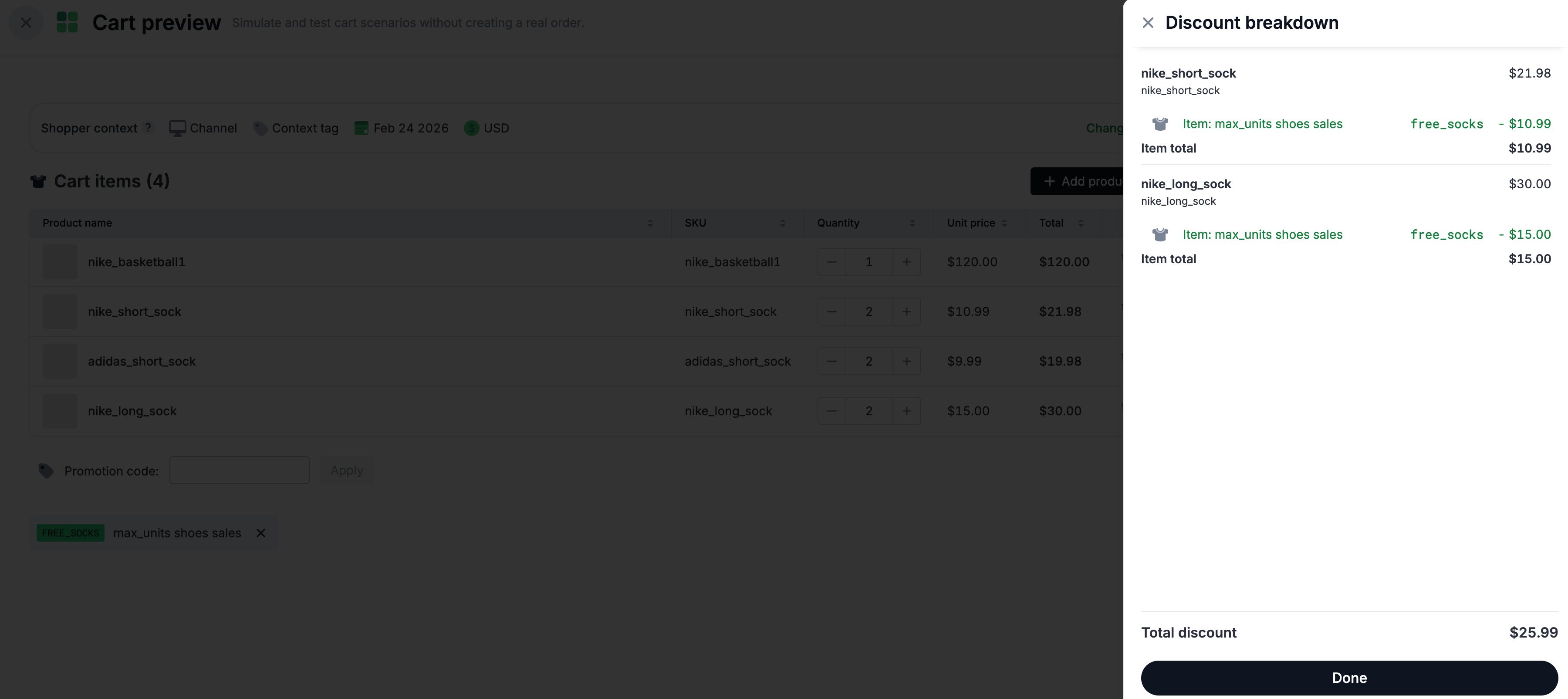
Scenario 1: Customer adds 1 shoes item and 3 socks items (quantity 2 each): 2 nike_short_sock ($10.99), 2 adidas_short_sock ($9.99), 2 nike_long_sock ($15.00)
- Result: 2 separate expensive socks items are discounted because there is a limit quantity of one for each line item.
See Cart preview example below:
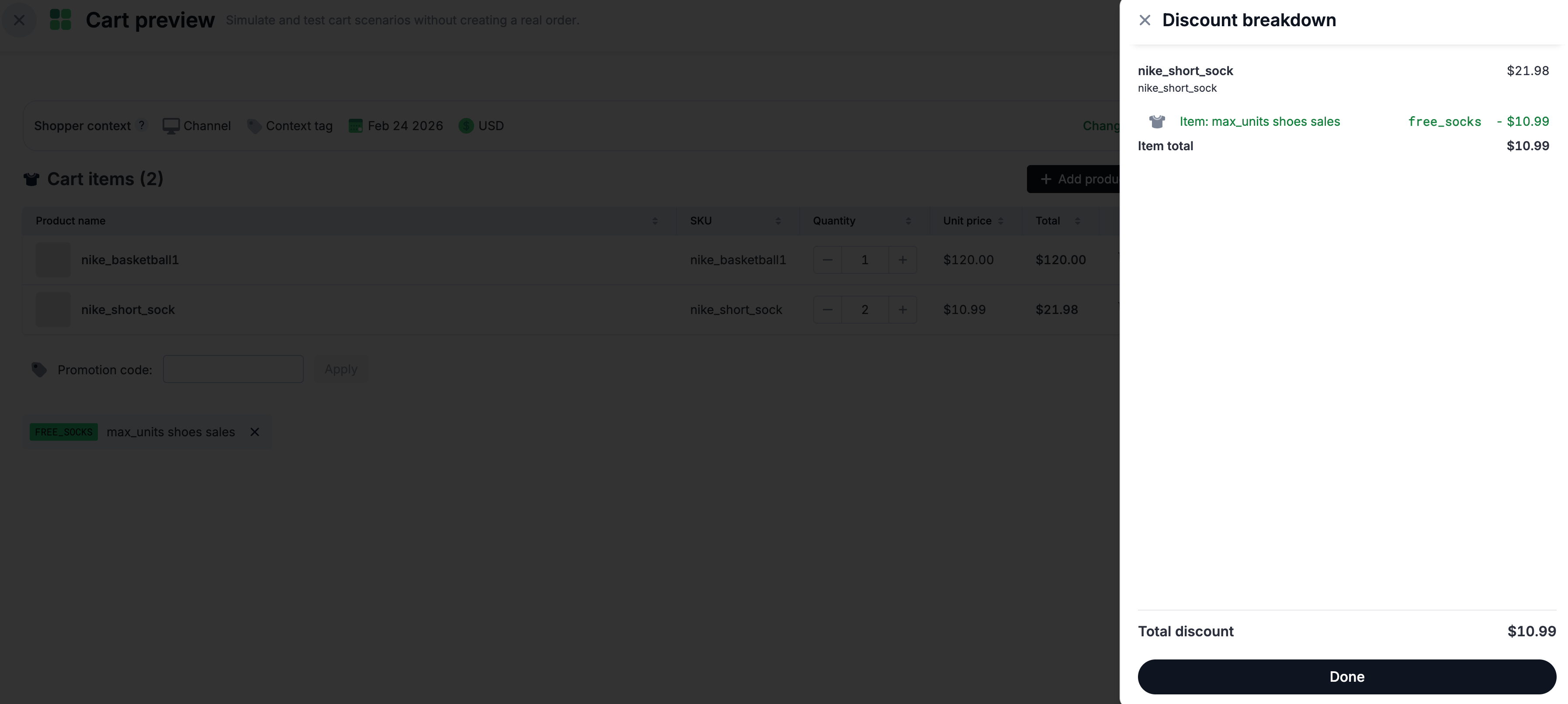
Scenario 2: Customer adds 1 shoes item and 1 socks item with quantity of 2:
- Result: Discount applied to 1 quantity of the sock because there is a limit quantity of 1 for each line item. Therefore, the second quantity of the sock is not discounted.
See Cart preview example below: